
Feelworld Monitor DH101 10.1""""
- VAT free purchase available at checkout.
- BrandFeelworld
Description
Article no.: 25071
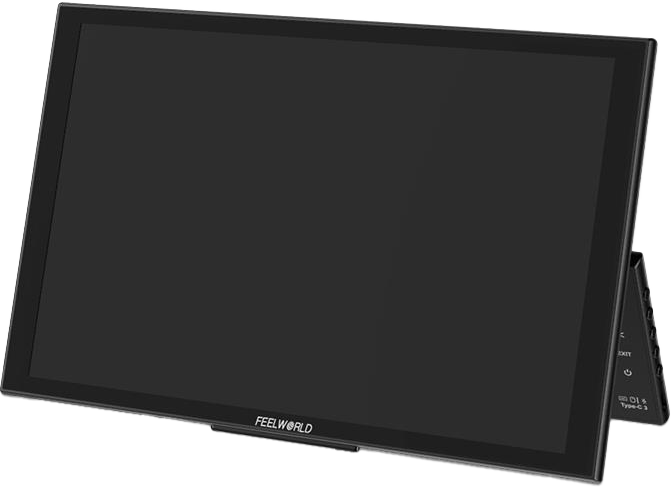
Feelworld Monitor DH101 10.1-inch – Portable monitor with dual full-featured Type-C and Mini HDMI
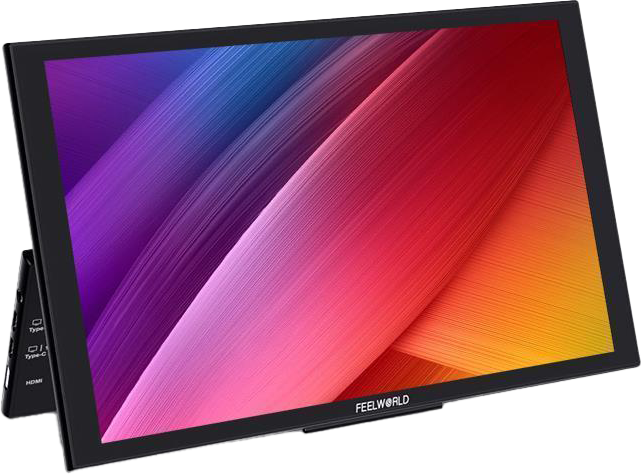
The FEELWORLD DH101 is a 10.1-inch portable external monitor designed to expand your screen space for work and entertainment. It connects via dual full-function Type-C ports and a Mini HDMI port, making it compatible with a wide range of devices such as smartphones, laptops, PCs, Nintendo Switch, XBOX, PS4, PS5 and more. The unit is slim, lightweight and plug-and-play for fast setup on the go.
Design and portability
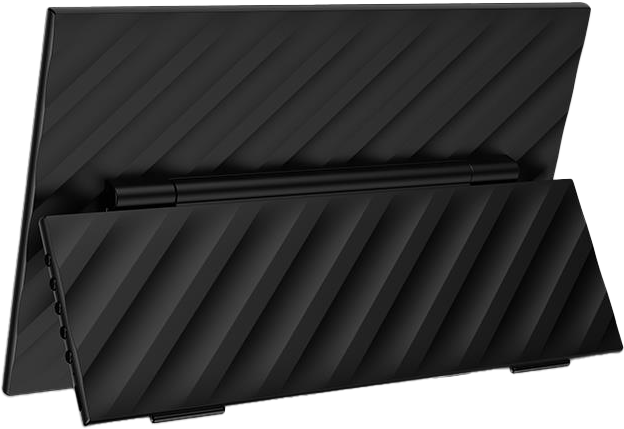
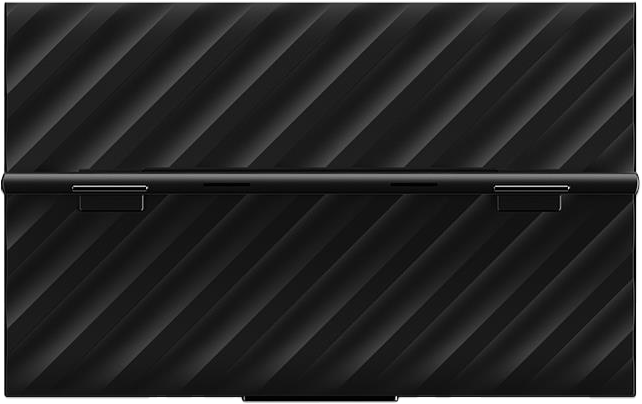
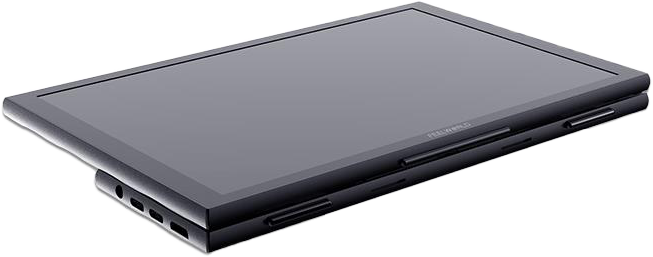
The DH101 uses a slim panel and a lightweight body that weighs 650g (1.43lbs). You can easily carry it in a backpack for travel, business, outdoor gaming or field work. An integrated stand adjusts from 0° to 90° and the bottom includes non-slip rubber pads to keep the monitor stable and to protect surfaces.
Display and image quality
This monitor features a 10.1-inch 1280×800 high-definition IPS panel. It reproduces 16.7 million colors and covers an sRGB wide color gamut to provide clear and colorful images and video. The native screen ratio is 16:10; when you input content with other aspect ratios the image may stretch unless you change the aspect ratio setting.
Connections and compatibility
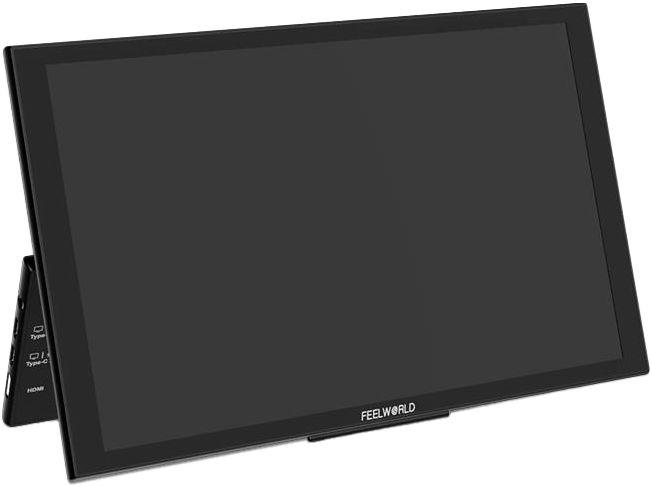
DH101 includes dual full-function Type-C ports and a Mini HDMI port for broad compatibility. The Type-C ports support power, video display and touch control (where supported by the connected device). The monitor also provides a Type-C port that can accept keyboard or mouse connection for simple peripheral use.
Note: iOS phones and Mac notebooks without an HDMI interface require adapter devices (for example, a Lightning-to-HDMI cable) to connect. The laptop Type-C port must support power supply and display output to enable one-cord Type-C connections. Because output power varies between devices, some setups may require an external power source.
Touch control and usability
When connected via a Type-C full-function port to a compatible smartphone or notebook, the DH101 supports touch control of the device interface. Touch response is smooth, and you can also use the on-screen display (OSD) buttons to adjust menu settings.
Portrait mode and productivity
The DH101 can be used in portrait orientation to expand productivity options. The monitor itself does not rotate the image automatically. To use portrait mode, set the display orientation on your PC or laptop (for example, via Windows display settings).
Audio and entertainment
The monitor includes built-in dual stereo speakers so you can enjoy audio without connecting external speakers. This makes the DH101 suitable for casual movie watching, gaming and simple audiovisual needs.
Key features
- 10.1-inch 1280×800 HD IPS panel
- Slim design and lightweight, easy to carry on the go
- Dual full-function Type-C ports for power, display and touch
- Mini HDMI port for broad device compatibility
- Additional Type-C port that can connect a keyboard or mouse
- Plug and play — no extra software required
- Built-in dual stereo speakers
What’s in the box
- 1 × Mini HDMI Cable
- 1 × USB-A to USB-C Cable
- 1 × USB-C to USB-C Cable
- 1 × Manual
Specifications
| Specification | Detail |
|---|---|
| Screen size | 10.1-inch |
| Resolution | 1280×800 |
| Panel type | IPS |
| Colors | 16.7 million colors |
| Color gamut | sRGB wide color gamut |
| Weight | 650g (1.43lbs) |
| Ports | Dual full-function Type-C, Mini HDMI, additional Type-C for keyboard/mouse |
| Stand | Integrated stand, adjustable 0°–90°, non-slip rubber pads |
| Speakers | Built-in dual stereo speakers |
| Aspect ratio | 16:10 (native) |
| Touch support | Supported via Type-C full-function connection when device supports touch output |
Smart FAQ
Question: Which devices can I connect to the DH101?
Answer: The DH101 connects to smartphones, laptops, PCs, Nintendo Switch, XBOX, PS4, PS5 and other devices that provide display output via Mini HDMI or Type-C. For iOS phones and Mac notebooks without HDMI, use an appropriate adapter (for example Lightning-to-HDMI).
Question: My phone is connected but the monitor shows “no signal” or goes into power saving. What should I check?
Answer: Confirm that your smartphone has a USB-C port that supports DisplayPort (DP) output. If the phone’s USB-C power cannot supply enough power for the DH101, connect the monitor to an independent power source.
Question: Why does my 16:9 movie or game stretch to fill the screen?
Answer: The DH101 uses a native 16:10 screen ratio. Signals with other aspect ratios can appear stretched by default. Change the aspect ratio via the menu: MENU → Advance → Aspect Ratio to set 16:9 and preserve correct proportions.
Question: The monitor is powered but I cannot access the OSD menu. Why?
Answer: Menu settings become available after a valid video signal is detected. Ensure your source device is outputting a compatible signal before adjusting the OSD.
Question: How do I use portrait mode with this monitor?
Answer: The DH101 does not rotate the image automatically. To use portrait mode, rotate the screen physically and change the display orientation on your PC or laptop (for example, Windows: Start → Control Panel → Appearance and Personalization → Display → Adjust Screen Resolution → Orientation).
If you have additional device compatibility or setup questions, contact support with your device model and connection type so we can help you get the DH101 running quickly and reliably.